Prototype designer
A quick OBJ concept arrives with an MTL file stored in another folder.
Keeping the asset bundle together helps preserve the intended surface appearance during the 3MF handoff.
OBJ conversion
Use obj to 3mf conversion when a polygon mesh needs a more structured handoff for 3D printing, material setup, or downstream manufacturing work.
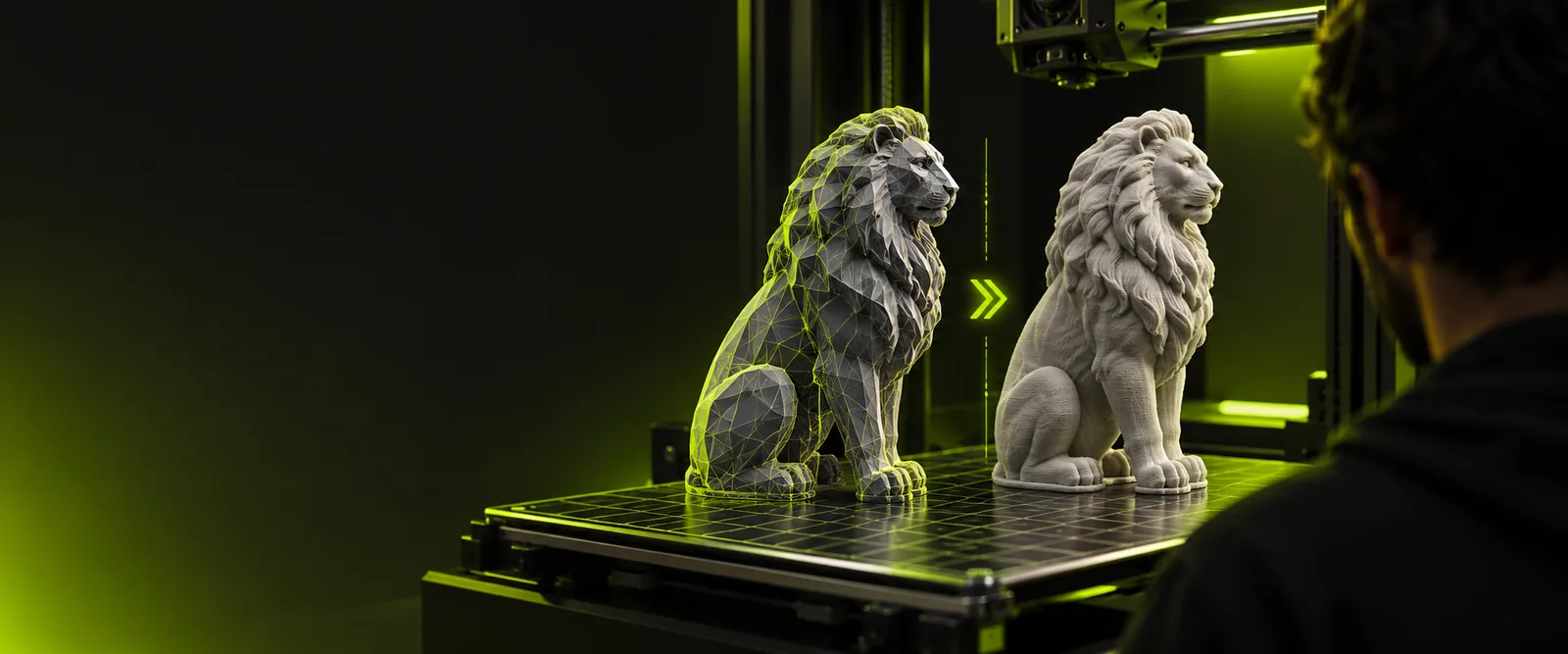
Know the limits
OBJ is widely supported, but it often carries geometry separately from the project information a printer or production workflow needs.
OBJ material references depend on accompanying MTL files and texture paths. A missing file can leave the converted model visually plain.
What to do instead
Keep the OBJ, MTL, and texture files together before conversion, then inspect material assignments in the destination software.
Open edges, flipped normals, self-intersections, and non-manifold areas can remain after conversion.
What to do instead
Run a mesh check and repair the geometry before slicing or sending it to fabrication.
Separate OBJ objects, groups, or naming conventions may be reorganized into a new 3MF package structure.
What to do instead
Confirm object names, part grouping, and placement after import.
A 3MF file can carry project data, but conversion alone does not guarantee the correct profile, supports, infill, or machine settings.
What to do instead
Open the result in your slicer and verify the active printer and process profile.
Conversion workflow
A reliable conversion is a short handoff: provide the source mesh, describe the intended output, and inspect the resulting project before production.
Select the OBJ file and include its companion MTL or texture assets when they are part of the model.
Specify that the destination should be a 3MF project and mention scale, orientation, grouping, or material details that matter.
Open the output in a compatible viewer or slicer, then confirm dimensions, parts, appearance, and print readiness.
Related routes
The right route depends on the format your current tool exports and the format your next tool expects.
Inspect the handoff
The before-and-after view is only a starting point. Use it to spot missing surfaces, altered scale, or unexpected grouping before the file reaches a slicer.
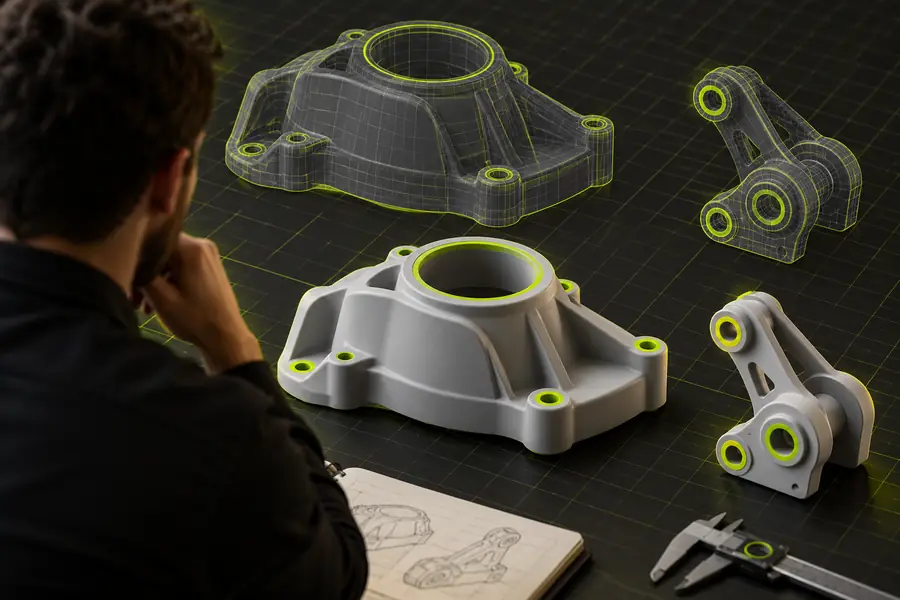

Check geometry, scale, grouping, and materials before export.
OBJ source3MF projectPractical scenarios
Different teams notice different problems first, so the final check should match the job the model needs to do.
A quick OBJ concept arrives with an MTL file stored in another folder.
Keeping the asset bundle together helps preserve the intended surface appearance during the 3MF handoff.
A downloaded OBJ opens at the wrong size or with several disconnected parts.
Verify units, dimensions, object placement, and manifold geometry before slicing the converted project.
A production team needs to move a printable project into a visualization or review workflow.
A deliberate format change keeps the handoff visible and makes it easier to validate what was retained.
Students need to inspect a mesh in a tool that handles project packaging more clearly than a basic OBJ viewer.
The converted file provides a practical checkpoint for names, parts, scale, and print preparation.
Ready to convert
Send the model through the conversion workflow, then open the result in the software that will actually print, edit, or review it. A short inspection now can prevent missing materials, wrong scale, and unusable geometry later.
Variant FAQ
Yes, an OBJ mesh can be handed off as a 3MF project through the conversion workflow. Inspect the result afterward because material references, grouping, and mesh validity depend on the source files.
If the OBJ uses materials, keep its MTL file and any referenced textures available. Without them, the geometry may convert while the intended appearance is incomplete.
Not necessarily. Non-manifold edges, holes, flipped normals, and self-intersections may remain, so use a mesh inspection or repair step before printing.
Check dimensions, orientation, part grouping, surface appearance, and whether the model is watertight. Then confirm the active printer and process settings in your slicer.