Glbto3mf

Can free glb to 3mf online work for your model?

A search for free glb to 3mf online can lead to very different tools. Before sending a GLB anywhere, check whether its mesh is printable and whether the destination actually offers 3MF export; Glbto3mf does not verify a tool’s price or capabilities for you.

Check destination features before export
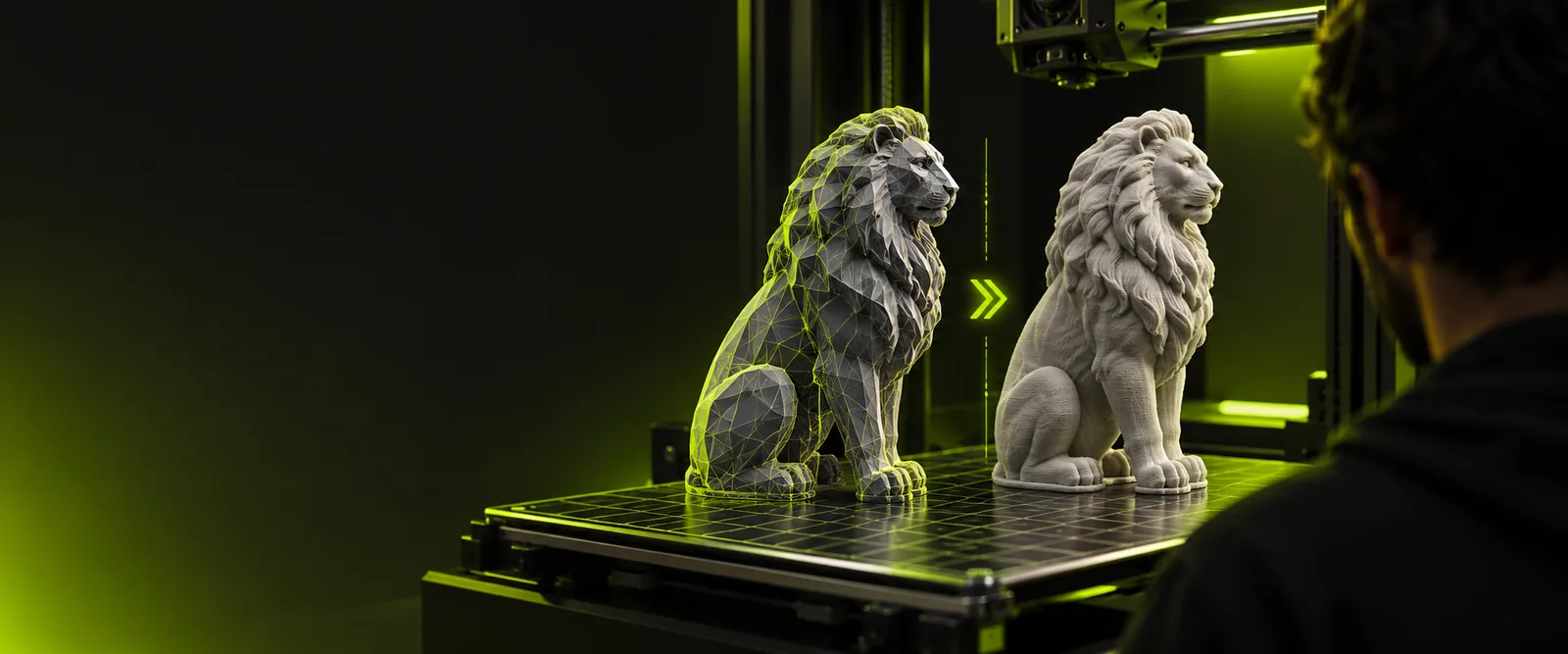
Illustrative 3D model displayed in a studio scene

Prepare for your source file

The best route depends on the file you actually have, not just the format you want at the end. These starting points help narrow the checks before export.

Web model designer

You have a glTF scene with external resources rather than one packed GLB. Confirm that every referenced texture and mesh is present before trying to prepare a print file.

A complete source is easier to inspect for missing geometry.

gltf to 3mf

Sculptor

Your source is an OBJ mesh. Inspect the geometry and any separate material files rather than assuming a format change will make the sculpt watertight.

Repair can focus on the mesh instead of the file extension.

obj to 3mf

Animation artist

An FBX contains rigs or animation that are useful on screen but not necessary for a static print. Identify the intended pose and mesh before export.

The print workflow starts from the geometry you mean to keep.

fbx to 3mf

First-time maker

You want to compare a decorative model with a practical part. Use examples to decide which details, surfaces and dimensions need checking in a slicer.

Your review reflects the intended use of the print.

glb to 3mf examples online

One full run-through

Treat glb to 3mf as a checked handoff, not a rename. The steps below apply whether you use a browser-based service or a local modeling application.

  1. 1

    Inspect the GLB

    Open the source and confirm that the intended object is present. Look for open edges, disconnected pieces, paper-thin surfaces and textures that only create the appearance of physical detail.

  2. 2

    Choose and verify a route

    Check that your chosen tool accepts GLB and explicitly supports 3MF export. If you need a free route, verify its current terms and any limits before uploading; the search phrase alone is not evidence of access.

  3. 3

    Prepare the printable geometry

    Set the intended dimensions, repair mesh defects where possible and decide whether colors or multiple parts matter. Export only after checking which of those properties the tool can preserve.

  4. 4

    Open the 3MF in a slicer

    Confirm scale, orientation, part count and assigned materials. Preview the layers for missing walls or floating regions, then return to the source mesh if the print preview is wrong.

Options table

An online route may be convenient, but its access terms and export controls vary. A local editor offers a different set of trade-offs; neither route makes an unsuitable mesh printable automatically.

Online workflow Local modeling workflow
Access Check the service’s current availability, terms and limits. Check the application’s license and installed features.
Source handling Confirm GLB import before providing a file. Confirm the installed application can open the GLB.
3MF output Verify that 3MF is an available export, not just a preview. Verify that the application or an installed extension can export 3MF.
Mesh repair Available checks and edits depend on the service. Repair options depend on the application and your workflow.
Private models Review upload and retention policies before submitting a file. Files can remain on your device if you avoid cloud features.
Final validation Open the exported 3MF in a slicer. Open the exported 3MF in a slicer.

What fails

A successful export only proves that a file was written. It does not prove that the object will slice correctly or that its appearance survived the trip.

1

A format change cannot close holes

An open or self-intersecting GLB mesh can produce missing walls or unexpected solids in the slicer.

What to do instead

Repair the source mesh, then inspect a layer preview of the exported 3MF.

2

Screen color may not become print material

GLB textures and lighting can make a model look detailed without encoding separate printable parts or material assignments.

What to do instead

Check the target tool’s material support and assign parts or colors deliberately.

3

Scale may not match your intended size

A model designed for viewing may arrive at an unexpected physical size in a print workflow.

What to do instead

Set a known dimension and confirm it in the slicer before printing.

4

Free access is not guaranteed

Availability, file limits and supported exports can change at the destination. This page cannot promise a free GLB to 3MF export.

What to do instead

Check the destination’s current terms and confirm that its export options meet your needs.

Continue with your model

Use the destination to explore your 3D workflow, but confirm its GLB import, 3MF export and access terms there. Keep your source file, and validate any resulting 3MF in a slicer before treating it as print-ready.

Check the model before committing to export

  • Confirm supported input and output formats
  • Check dimensions and mesh integrity
  • Inspect the exported file in a slicer
Explore model workflow

FAQ

No. A service may change its access terms, file limits or export formats, so check its current offering before uploading a model. Glbto3mf does not guarantee a free export at the destination.

A tool may export a 3MF from a GLB, but that does not make every mesh suitable for printing. Check for closed geometry, adequate wall thickness and the correct physical dimensions in a slicer.

Do not assume they will. Texture appearance, printable colors and separate material assignments are different things, and preservation depends on the tools involved. Inspect the exported parts and materials before printing.

Confirm that the service accepts GLB, offers the 3MF export you need and has terms you are comfortable with. If the model is confidential, review its file-handling policy before submitting it.

Open it in your intended slicer and check dimensions, orientation, part count and layer preview. If walls disappear or regions float, repair the source geometry and repeat the export.

Start creating
Start creating