Character artist
A rigged character must become a static figure. Choose a pose and apply the deformations before assessing the mesh for printing.
For a scene-based alternative with linked assets, compare the glTF input path.
Format workflow
An FBX scene can contain geometry, materials, lights, cameras and animation, while a 3MF file is meant to carry a model into a print workflow. Start with the geometry you need, then check whether your chosen tools support the required import and export.
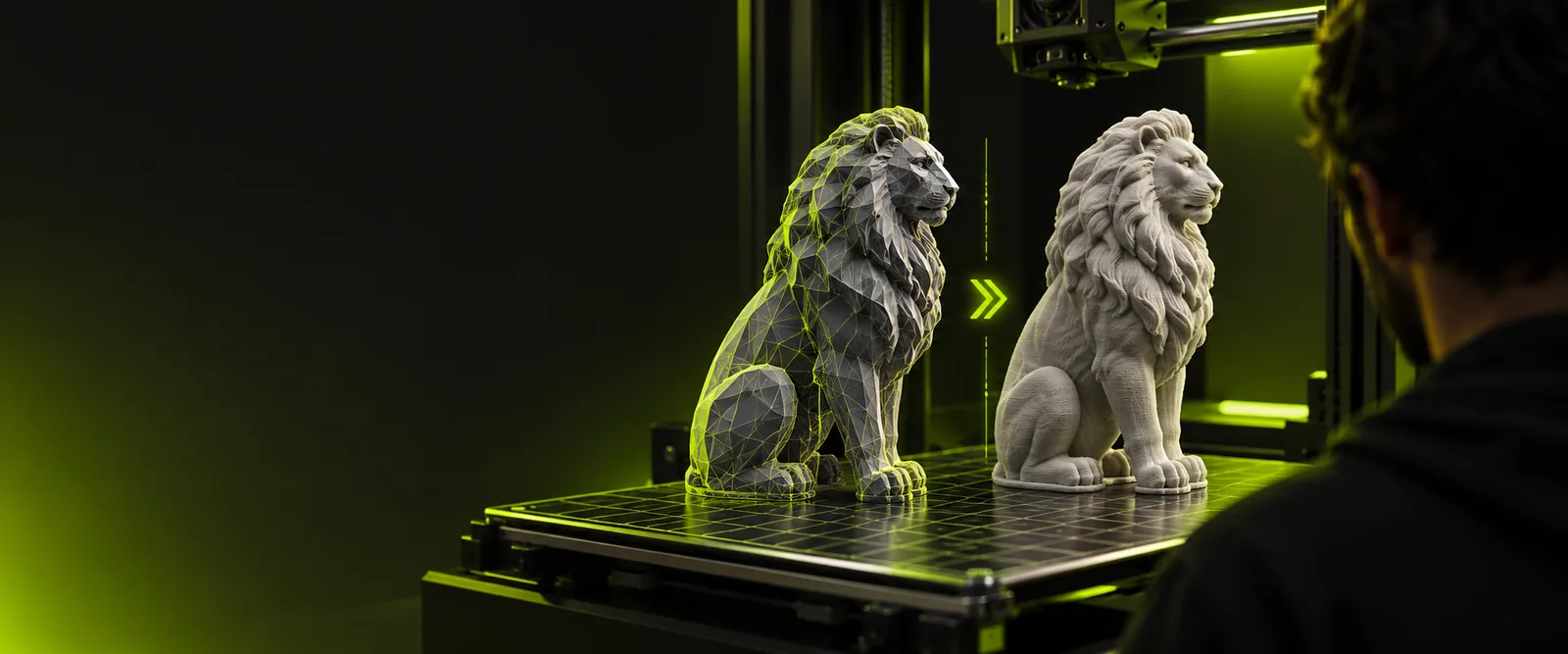
The two formats serve different stages of a 3D workflow. Compare nearby format paths if your source file or intended output differs.
A rigged character must become a static figure. Choose a pose and apply the deformations before assessing the mesh for printing.
For a scene-based alternative with linked assets, compare the glTF input path.
An FBX product render includes lights and cameras, but the printer needs only the part geometry. Isolate the intended objects and inspect their dimensions.
If the geometry is already a plain mesh, the OBJ input path may be easier to assess.
A client supplies a scene rather than a print-ready model. Check that every intended part has thickness and that separate shells are deliberate.
For a model that must later return to a viewer, review the reverse format path.
Treat scene features as source data to evaluate, not as features a printed object can reproduce.
Select the frame or pose you want. Animation tracks and rig controls do not become moving parts merely because the mesh is exported.
Exclude cameras, lights and hidden construction objects. Apply needed modifiers or deformations, then inspect the resulting static surfaces.
Texture maps, shaders and material assignments may not transfer as expected. Confirm color and material behavior in the destination software rather than assuming a visual match.
For fbx to 3mf, the critical distinction is between preserving an editable scene and carrying a model into a manufacturing workflow.
| FBX source | 3MF destination | |
|---|---|---|
| Primary role | Exchange of 3D scenes and assets | Exchange of 3D manufacturing models |
| Geometry | Meshes within a scene hierarchy | Mesh objects arranged for a print workflow |
| Animation | Can contain rigs and animation data | Not a format for playing scene animation |
| Cameras and lights | May be included as scene objects | Not part of the printable object |
| Materials | Can reference scene materials and textures | Material and color data depend on the producing and receiving software |
| Print readiness | A valid scene can still have open or overlapping meshes | Requires inspection in the slicer before printing |
| Scale | May depend on export settings and application conventions | Must be checked against the intended physical dimensions |
A successful file export is not proof that the object will slice as intended. Open the result in the software you plan to use next.
The linked workspace is not evidence that FBX import or 3MF export is supported. Confirm its current format options before relying on this route.
What to do instead
If either option is unavailable, use a 3D editor and exporter that explicitly support the formats you need.
Open edges, self-intersections, disconnected shells and walls that are too thin can remain after a format change.
What to do instead
Inspect the mesh, repair the source geometry where necessary, and check the slicer's layer preview.
FBX shaders and texture-driven effects may not appear the same in a 3MF-capable application.
What to do instead
Compare the source with the imported result and verify each intended color or material assignment.
A model can look correct on screen while importing at an unexpected size.
What to do instead
Measure a known dimension after import, then confirm orientation and placement on the build plate.
Use Glbto3mf as a guide to the format decisions, then open the linked 3D workspace to assess your next step. Check its available file options, and verify any exported model in your slicer before printing.
You can prepare a static mesh from a chosen pose, but animation itself will not become a moving print. Apply the pose, inspect the resulting geometry, and confirm that your software can export the required format.
Do not assume they will. Texture and material handling varies by exporter, importer and slicer, so inspect the resulting model in the software you intend to use.
Applications may interpret source units or export settings differently. Compare a known measurement in the source and destination, then correct the scale before slicing.
No. Check for open surfaces, thin features, unintended separate shells and incorrect orientation, then review the slicer's layer preview.