FORMAT CONVERSION
Convert 3mf to glb for portable 3D scenes
A 3mf to glb conversion changes a packaged 3D Manufacturing Format project into a compact GLB scene for viewers, web delivery, or compatible 3D software. Check the model after conversion so geometry, materials, and scale match your intended result.
Related format conversions
- gltf to 3mf Move a glTF scene into a 3MF package when you need a manufacturing-oriented exchange format.
- fbx to 3mf Convert an FBX asset toward 3MF when your project starts in a common animation or modeling format.
- obj to 3mf Take an OBJ mesh toward 3MF when you need to preserve a simple geometry-first workflow.
Why 3MF to GLB
The route is useful when a packaged manufacturing model needs to become easier to preview, share, or place in a real-time 3D pipeline.
-
1
Prepare the source
Check that the 3MF opens correctly and that its meshes, colors, textures, and units are intentional before conversion.
-
2
Convert the package
Send the source through the conversion workflow and select GLB as the destination for a single binary scene file.
-
3
Inspect the result
Open the GLB in a compatible viewer and verify orientation, scale, visible materials, object placement, and overall geometry.
3MF and GLB specifications
These formats overlap in their ability to carry 3D scene information, but they organize and prioritize that information differently.
| 3MF source | GLB output | |
|---|---|---|
| File role | Manufacturing-oriented 3D package | Binary delivery format for 3D scenes |
| Typical extension | .3mf | .glb |
| Container structure | Package that can hold model data and related resources | Single binary file based on glTF structure |
| Geometry | Mesh geometry with package-level relationships | Mesh geometry for scene playback or viewing |
| Materials | May include material and color information | Can carry materials supported by the GLB pipeline |
| Textures | May include referenced package resources | Can embed supported image resources in the binary file |
| Best-known strength | Organized exchange for 3D printing workflows | Portable scene delivery and interactive viewing |
| Primary check after conversion | Confirm the source package is complete | Confirm the scene renders with expected scale and appearance |
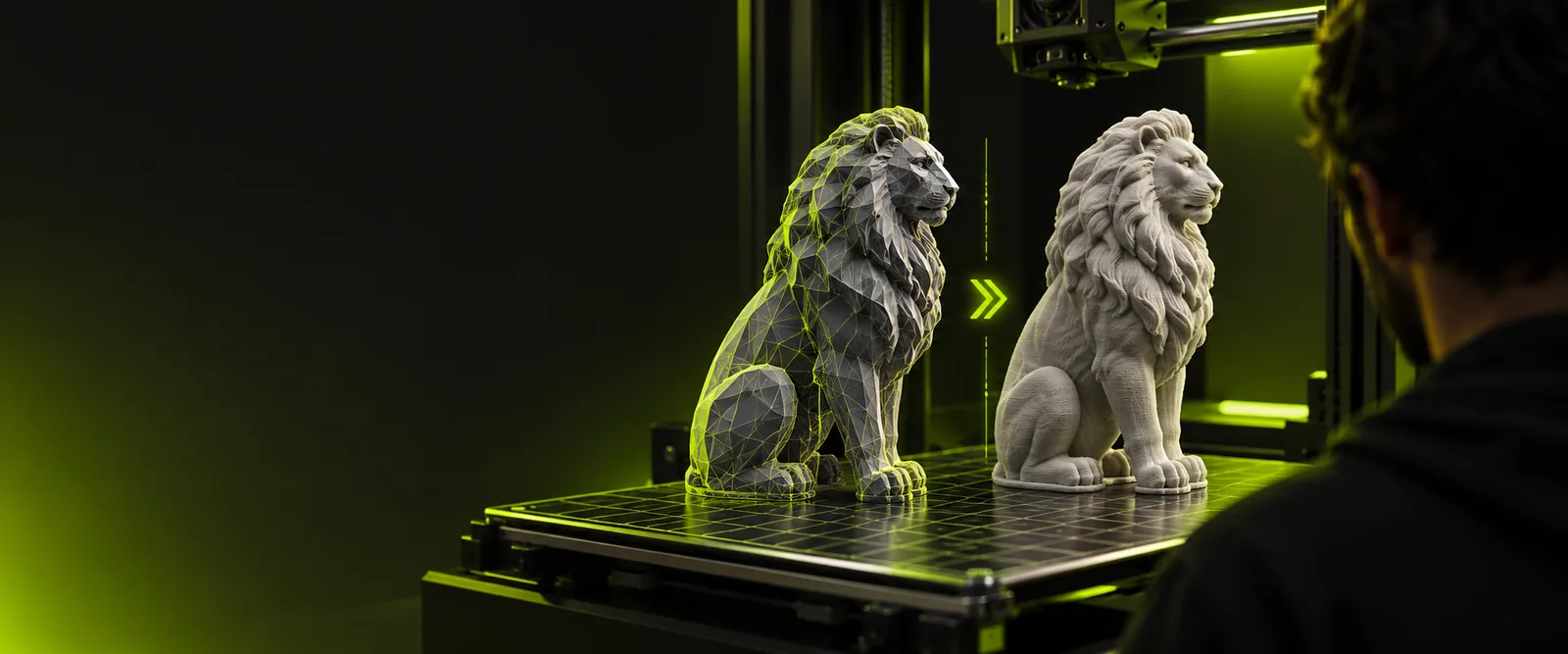
See the format change

The container changes, so compare the rendered model rather than judging the file extension alone.
3MF sourceGLB resultRoute limitations
A format change is not the same as a full repair or optimization pass. Keep these caveats in mind before relying on the output.
Not a mesh repair service
A broken, non-manifold, or incomplete source mesh may remain broken after conversion.
What to do instead
Repair the source geometry in a suitable 3D editor before creating the GLB.
Not every package feature transfers
Specialized 3MF metadata, manufacturing settings, or unsupported material behavior may not have a direct GLB equivalent.
What to do instead
Keep the original 3MF as the authoritative manufacturing file and use GLB for viewing or delivery.
Not a guaranteed scale correction
Different applications can interpret units and scene scale differently, even when the mesh itself converts correctly.
What to do instead
Compare a known dimension in a viewer and adjust scene scale before publishing.
Not a substitute for visual review
A successful file export does not prove that textures, normals, transparency, or object placement look correct.
What to do instead
Open the result in the target viewer and inspect the complete scene.
Format facts
Use these compact facts to frame the conversion before you choose a destination workflow.
- Manufacturing-oriented package entering the route
- 3MF source
- Binary scene format leaving the route
- GLB output
- This page covers 3MF into GLB, not the reverse
- 1 direction
Move your 3D file into the next workflow
When the source package is ready, use the conversion workspace to create a GLB candidate, then validate it in the viewer or application where it will be used. Keep the original 3MF beside the output so manufacturing data and presentation data remain easy to distinguish.
- Start with a prepared 3MF package
- Review geometry and materials in the result
- Keep the source for manufacturing reference
3MF to GLB FAQ
It is the process of turning a 3MF package into a GLB scene file. The output is intended for compatible 3D viewers, web experiences, or other GLB-aware software, while the original 3MF can remain the source record.
GLB is convenient when a model needs to be delivered as one binary scene file for preview or interactive use. Converting can make a 3D asset easier to pass into workflows built around glTF and GLB.
Not necessarily. Manufacturing instructions, package-specific metadata, and unsupported properties may not have a direct representation in GLB, so retain the original 3MF for production context.
Open it in the target viewer and inspect the model from several angles. Check geometry, orientation, scale, materials, textures, transparency, and object placement against the original 3MF.
Usually, the files serve different purposes rather than replacing one another. Use the GLB for compatible viewing or delivery and preserve the 3MF when package structure or manufacturing information matters.