Glb to 3mf: GLB Compressor Vs Mesh Simplifier
Learn how glb to 3mf workflows relate to GLB compression and mesh simplification, including which step to use first and how to check the result.
If you came looking for glb to 3mf, this guide explains how GLB compression and mesh simplification affect asset size and quality before you convert or deliver a model.
Compression and simplification solve different problems: one makes an asset smaller to deliver, while the other removes geometry. I choose the order by checking what makes the file heavy, what detail the model needs, and where the finished GLB must open.
The short version
- Start with simplification if a dense mesh is the problem. Set a triangle target for the intended use, then inspect the silhouette, UVs and shading before compressing the delivery copy.
- Start with compression if the mesh is already suitable but large textures make the file expensive to deliver. SupaVoxel’s GLB compressor re-encodes textures as WebP when that saves space, offers texture-size limits, and packs geometry with meshopt.
- Do not mistake a smaller geometry buffer for fewer triangles. Compression packs the data; simplification changes the mesh.
- Test the result in its actual viewer or engine. A small file is not useful if the destination cannot decode its extensions or the reduced detail looks wrong.
What each operation changes
A GLB can be large for reasons that need different fixes. Images may account for much of its size, especially when a prop carries high-resolution textures. A scan, by contrast, may have far more triangles than its final screen size justifies. Checking both the texture count and the triangle count tells me more than the file size alone.
The compressor addresses delivery size. It can cap each texture’s longest edge at Keep, 2K, 1K or 512; 2K is its default. It also tries WebP encoding, replacing a texture only when the WebP version is smaller. For geometry, it stores positions, normals and UVs as compact integers and packs vertex and index data with meshopt. Those steps reduce stored bytes without serving as a triangle-reduction pass.
A mesh simplifier tackles a different question: how much surface geometry does this asset actually need? It removes or combines geometry to meet a lower triangle budget. That can help a dense scan or background prop, but it can also alter an outline, flatten small features or disturb texture mapping. I treat the requested triangle count as a design decision, not a promise that the result will look unchanged.
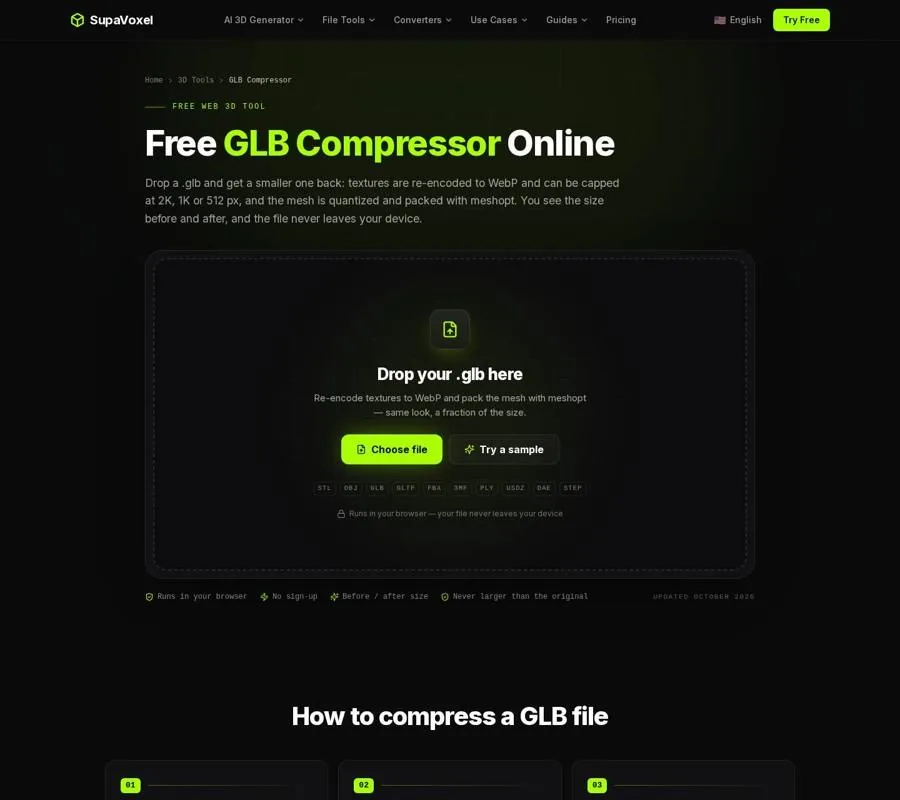
The compressor shows model information and provides a texture-size control alongside its before-and-after comparison.
Choose the first step by the bottleneck
Here is the decision sequence I use before changing an asset.
- Inspect the model at its delivery size. Note its triangles and textures, then view it at the distance people will actually see it. If a model already has a reasonable outline and responsive handling, reducing triangles just to make the download smaller may solve the wrong problem.
- Set the geometry budget if geometry is the issue. Work from the target viewer or engine’s needs and the model’s role. An exact triangle target is useful as a goal, but it is not a quality test. Check curved outlines, narrow features, shading and any textured areas after simplification. If UVs matter, confirm that the texture still lands where it should rather than assuming every reduction method preserves it perfectly.
- Compress the version you intend to ship. Keep the editable source separately. Compare the original and result up close, then open the downloaded file in its destination.
That order avoids spending time compressing geometry that I am about to discard. It also keeps the two judgments separate: first, whether the mesh contains the right amount of detail; then, whether its delivery file is appropriately small.
There is a sensible exception. If I suspect textures are overwhelmingly responsible for the download size, I may try compression first as a diagnostic. The before-and-after size shows what that particular asset gains. If the mesh still causes trouble in use, a smaller file alone has not settled the geometry question.
Texture-heavy assets: compress before cutting detail
Consider a product model intended for a viewer where people can turn it and inspect it closely. Its silhouette and small modeled details may be important, while its source textures may be larger than the display needs. I would leave the geometry alone initially and test the compressor’s 2K setting against Keep.
The trade-off is visible detail versus image bytes. Reducing a 4K texture to 2K leaves a quarter as many pixels; going to 1K leaves a sixteenth. That is why texture limits can make a substantial difference to an image-heavy GLB. It is also why I would not pick 512 for an object people are expected to zoom into: blur can become the first thing they notice.
The Original and Result toggle is useful here, but I would compare fine lettering, painted edges and material detail at the viewing distance the asset will face. If the smaller texture softens something important, I can choose a less aggressive cap without touching the mesh. If the GLB is already compact, the compressor may return the original rather than produce a larger file.
Dense scans: simplify before compressing
A scan can have the opposite profile: substantial geometry with colors stored on vertices rather than in large texture images. Texture downscaling cannot help much when there are no textures. Meshopt packing may still reduce the stored geometry, but it does not decide which triangles the viewer could do without. I would clean and reduce the mesh first, then compress the resulting GLB.
For a scan starting as PLY, SupaVoxel’s PLY to GLB converter turns a mesh PLY into a GLB and keeps its vertex colors. It does not turn a point cloud into a surface: a PLY with vertices but no faces needs reconstruction before conversion. The converter also assumes millimeters because PLY has no unit field, so I would check its output-size readout if the scan came from a workflow that uses meters.

The PLY converter distinguishes a mesh suitable for conversion from a point cloud and shows the output size for a unit check.
Geometry reduction needs a visual check beyond the headline triangle count. I look at the scan’s outline first, then areas where surface relief or vertex color defines the subject. If a simplification pass makes those areas crumble or changes their shading, the target is too aggressive for that use. Where a scan does have UVs and an image texture, I check both after reduction; a clean silhouette does not guarantee clean texture placement.
Check the delivery copy, not just the size
The compressor’s output uses EXT_meshopt_compression, KHR_mesh_quantization and EXT_texture_webp. Three.js with its meshopt decoder registered, Babylon.js and model-viewer can read these, but not every desktop app, older engine importer or marketplace supports every extension. I keep the original GLB for editing and test the compressed copy in the actual destination. An empty or untextured result is a compatibility problem, not evidence that the model’s triangles need further reduction.
If I need to inspect why a GLB behaves differently in a viewer, SupaVoxel’s GLB to glTF converter can unpack it into readable JSON, with an option for separate geometry and image files. That makes node names, materials and extension references easier to examine. It is an inspection and editing step, not a substitute for testing the file I will ship: the converter writes previously compressed geometry uncompressed, and its export may not carry every extension from the source.

The converter offers an embedded glTF or separate files, which are easier to inspect and edit.
My final check is deliberately ordinary: does the model open, does its color appear, does it look right at the intended viewing distance, and does it meet the project’s delivery budget? Those answers determine whether I revisit the texture cap, the triangle target or compatibility settings. File size alone cannot choose the order for me.
FAQ
Does meshopt compression reduce the triangle count?
No. In this compressor, meshopt packs vertex and index data for a smaller delivery file. Use mesh simplification when the mesh itself needs fewer triangles.
Should I simplify a textured model before compressing it?
If its triangle count is a problem, yes—but inspect the silhouette and texture mapping after simplification. Then compress that approved mesh. If textures are the main source of file size, try compression first and avoid unnecessary geometry changes.
Why does my compressed GLB fail in a viewer?
The viewer or importer may not support meshopt compression or WebP textures. Test the compressed file in its intended destination and keep the original GLB available for an app that cannot read it.
Want to try it yourself?
Try Supavoxel →